Insights reporting has been redesigned to provide a simplified, live-data overview of training performance, group structures, and compliance! The Groups view gives you immediate, actionable visibility into your organizational hierarchy, team members, and learning progression. Instead of digging through disconnected reports, you can now quickly monitor completion rates across different group structures, see exactly which trainings are assigned to each team, drill into individual user progress, and access diplomas when you need them. 📊
Groups Overview
The main Groups page serves as your directory and high-level dashboard, summarizing completion performance across all groups within your administrative scope.
Navigate to: Insights → Groups
What you'll find & how it works:
Group Type Selector
By default, the page displays your Organization Hierarchy Groups, reflecting your standard group tree structure. Use the dropdown in the top-left corner to switch views:
- Organization Hierarchy Groups
Displays your primary organizational hierarchy and sub-groups.
- Custom Groups
View manually created groups used for specific target audiences, pilots, or projects.
Custom Admin Groups
View groups created via Group Admin Assignment.
- Organization Hierarchy Groups
Search
Use the search bar at the top to quickly find a specific group by name. The search is context-aware and searches within your currently selected group type.
Group List & Completion Rates
Lists all accessible groups alongside their overall completion percentage across all assigned learnings. Clicking on any group takes you directly to that group's detailed overview.
Group Overview: Users and Learnings
Clicking into any group from the list or search opens that group's dedicated reporting view. Here, you have access to two central tabs: Users and Learnings.
Navigate to: Insights → Groups → (Select a group)
Users Tab
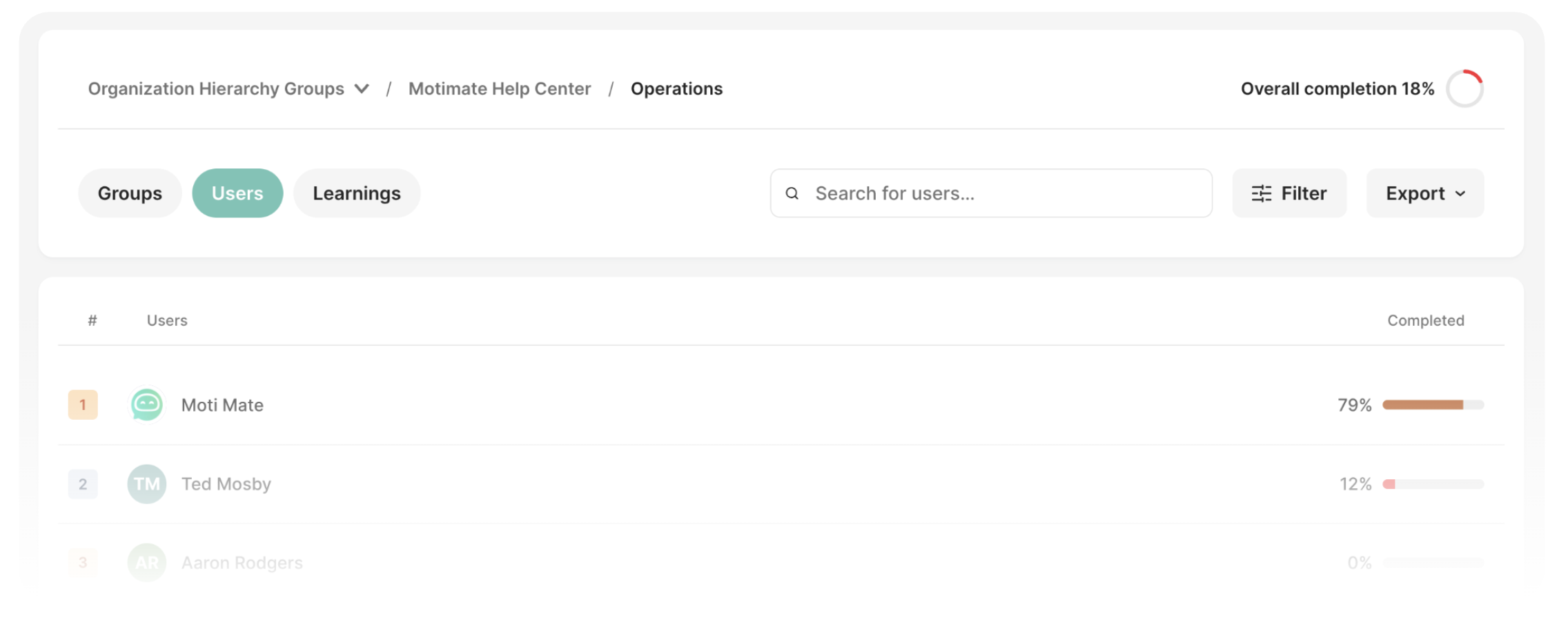
Group Member Overview:
When opening a group, you automatically land on the Users tab. This view lists all members belonging to the selected group along with their individual completion percentage.
Direct User Drilldown:
Clicking on any user's name immediately opens their single-user profile to inspect individual course completions and diplomas.
Filtering:
You can use filters to narrow your search. Filter by:Completions (high to low), or (low to high)
Name (A-Z), and (Z-A)
Positions
Include users from subgroups (toggle on/off)
Export:
Click the Export button for the card you want to download, and select format:CSV (.csv)
Excel (.xlsx)
PDF (.pdf)
Learnings Tab
Switching to the Learnings tab gives you a complete overview of all training (Motis, Packages, and Learning Paths) assigned directly to or inherited by this specific group.
Headline Metric Cards
Display-only cards above the list providing aggregate stats for the group: Overall completion percentage, total count of Assigned learnings, learnings Started, and learnings Completed.
Learnings List
Displays each assigned training item along with its group completion rate and total user completions. Clicking on any listed learning opens its detailed breakdown.
Export:
Click the Export button for the card you want to download, and select format:CSV (.csv)
Excel (.xlsx)
PDF (.pdf)
Detailed Learning View (Clicking a Learning)
Headline Metric Cards
At-a-glance numbers showing Assigned Users, Started, Completed, and general Completion rate for this specific course within the group.
Member Progress Breakdown
A detailed list of all group members, showing their Assigned Playlist, current Status (Not started, In progress, or Completed), Due date (if any), Completion date (if completed), Chapter progress (e.g., 3/4 or 7/7), and a visual Progression bar with percentage.
Member Link
Clicking on any member's name from this table routes you directly to their individual user profile.
Filtering:
You can use filters to narrow your search. Filter by:Groups
Playlists
Users
Export:
Click the Export button for the card you want to download, and select format:CSV (.csv)
Excel (.xlsx)
PDF (.pdf)
User Drilldown & Diplomas
Whether you click on a user from the group's Users tab or from a specific course breakdown in the Learnings tab, you arrive at that single user's dedicated Insights profile.
Navigate to: Insights → Groups → (Select a group) → Users → (Select a user)
Learnings Tab
Personal Training Summary
Top cards show the individual's Total score (matching what the user sees on their personal My Training homepage), total count of Assigned learnings, Not started, Started, and Completed.
All Assigned & In-Progress Training
Lists every course, package, and learning path along with its Playlist, Status, Due date, Completion date, Chapter progress, and visual Progression bar.
Understanding User Scope
Unlike the group-level Learnings tab (which only reflects training assigned to that specific group), the user profile view displays the user's complete training picture across the entire organization. This includes self-enrolled Discover (Utforsk) courses and training assigned through other groups.
Filtering:
You can use filters to narrow your search. Filter by:Status (Not started, In progress, Completed)
Playlists
Export:
Click the Export button for the card you want to download, and select format:CSV (.csv)
Excel (.xlsx)
PDF (.pdf)
Diplomas Tab
Compliance Certificates & Diplomas
Clicking the Diplomas tab allows you to inspect and download compliance documentation. All earned diplomas are listed with single-click PDF downloads. For recurring certifications, every completed cycle version is retained, with the newest diploma listed first.
Export:
Click the Export button for the card you want to download, and select format:CSV (.csv)
Excel (.xlsx)
PDF (.pdf)
Things to Keep in Mind
To ensure you get the most out of Groups in Insights, please note the following details in this release:
Role Access & Scoping:
Organization Administrators have access to all groups across the organization. Group Admins and Group Super Admins automatically see the highest group level they manage, along with any child groups underneath.
Group Scope vs. User Scope:
The Learnings tab on a group only displays courses assigned directly to or inherited by that group. When drilling into an individual user, their profile displays their complete training history across the platform.
Display-Only Summary Cards:
The aggregate metric cards at the top of the group Learnings view, course breakdown, and user profile are informational summaries and cannot be clicked into.
- Data Refresh:
Insights uses a live-data model. If you notice slight variations during active rollout campaigns, check the "last refreshed" timestamp at the top of the reporting view.
If your reporting data does not look or behave as expected, please contact your administrator or Motimate Support with screenshots of what you see.